Transparent PNG for DTF: settings, resolution and mistakes
File type, colour profile, resolution at real print size and the export mistakes that ruin your edges: everything you need for a DTF-ready PNG.
The transparent PNG is the go-to format for sending artwork to DTF print. It looks simple: remove the background, save, send. Yet a good share of the problems that show up on film (pale boxes, ragged edges, muddy detail) start in those few seconds of exporting.
This guide covers the settings that actually matter, how to think about resolution and which mistakes to steer clear of. The values below are a starting point: every printer, RIP and film behaves a little differently, so the final word always belongs to a test print.
- Export a 24-bit PNG with an alpha channel, not PNG-8 and never a JPG.
- Work in RGB (usually sRGB) unless your print shop says otherwise.
- Size the file for the real print dimensions: roughly 300 dpi as a guideline.
- Get rid of semi-transparent pixels along the edges before sending the file.
Why PNG in the first place
In DTF, everything that carries colour is printed with a layer of white ink underneath, and everything transparent stays as empty film that never reaches the garment. The RIP therefore needs a file that says, pixel by pixel, what to print and what to skip. PNG does this through its alpha channel, which stores each pixel's opacity separately from its colour.
JPG has no alpha channel: every pixel is always solid. A "JPG on a white background" will print with a white rectangle around it, because for the RIP that white is simply colour. TIFF and PSD can hold transparency too, but PNG remains the most widely accepted format in print workflows and online gang sheet builders.
Export settings that matter
Bit depth and alpha channel
Choose a 24-bit PNG with transparency (some apps call it PNG-24, others 32-bit PNG or RGBA). PNG-8 uses a limited colour palette and an all-or-nothing transparency that is applied crudely: gradients break up and edges turn jagged.
Colour profile
PNG is an RGB format. In most cases it makes sense to work and save in sRGB, embedding the profile if your software allows it, and let the RIP convert to ink. Wide gamuts such as Adobe RGB or ProPhoto can produce unexpected colours if the RIP doesn't interpret them correctly. If your print shop specifies a profile, that instruction beats any general rule.
Options to switch off
- A solid background layer: if a white layer is still visible in the document, the PNG will be opaque even if you "saved with transparency".
- Matte or edge blending: some export dialogs blend edges into a background colour to make them look smooth. On white you get a pale halo, on black a dark outline.
- "Save for web" style exports with automatic optimisation: they may resize the image or cut colours without telling you.
Resolution: pixels and inches, not just dpi
The dpi number stored in a file is only a label. What matters is how many pixels you have relative to the final size. A common guideline is around 300 dpi at the real print size. The maths is simple: inches × dpi, or centimetres ÷ 2.54 × dpi. For an 11-inch-wide front print, for example, 11 × 300 gives about 3300 pixels.
| Print width | Pixels at ~300 dpi (guideline) |
|---|---|
| 4 in / 10 cm (left chest) | about 1200 px |
| 8 in / 20 cm | about 2400 px |
| 11 in / 28 cm (adult front) | about 3300 px |
| 14 in / 35 cm | about 4200 px |
These are starting points, not universal requirements: some shops are happy with less, others ask for more. What almost never works is upscaling a small file to hit the pixel count. Resampling adds no real detail, softens outlines and introduces fresh semi-transparent pixels along the edges. If the original is too small, look for a larger version or rebuild the artwork as a vector. Our guide on how to prepare a DTF print file goes deeper into this.
The real enemy: semi-transparent edges
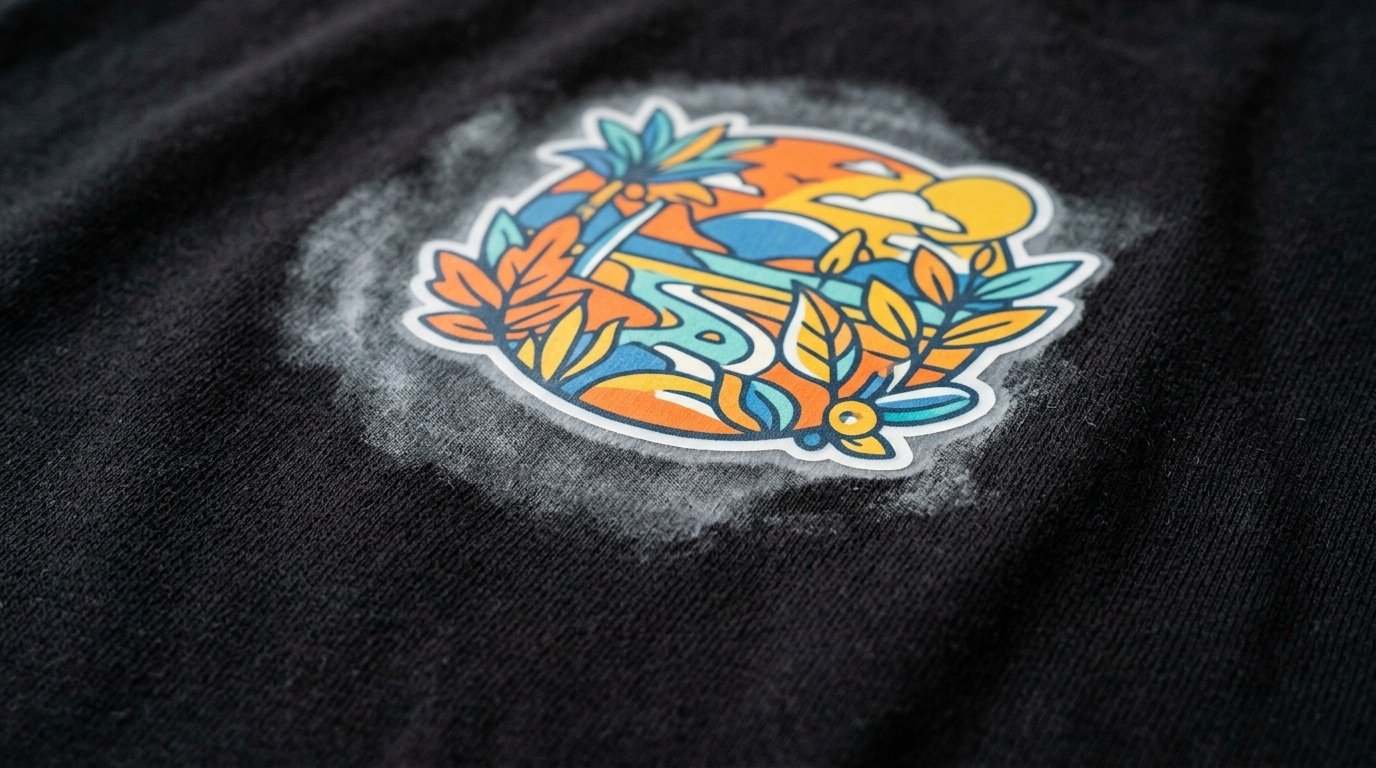
Even a perfectly exported PNG can hide an invisible problem: pixels with partial opacity along the outlines, created by anti-aliasing, soft shadows, glows or background removal tools. On screen they look transparent, but many RIPs print them anyway, often with a veil of white underneath. The result is a thin halo around the design that stands out on dark garments.
We explained the mechanism in the article on why the RIP prints pixels that looked transparent, and the guide to white halos in DTF prints collects causes and fixes on the print side. In short: before sending the file, make the alpha channel crisp (every pixel fully opaque or fully clear) and turn shadows and gradients into halftone dots instead of leaving them as gradual opacity.
Common mistakes to avoid
- Going through a JPG: even one intermediate JPG step wipes out transparency and adds compression artefacts around the edges.
- Screenshots or copy-paste from a browser: the result is usually screen resolution with a flattened background.
- Text and lines that are too thin: at real size they may not hold up to the white underbase and the transfer. Check minimum sizes with your print shop.
- A huge canvas around a small design: the file gets heavier, harder to handle and the real size of the design becomes ambiguous. Crop the canvas to the artwork with a small margin.
- Near-black colours on black garments: they'll be printed over white and come out grey. Often it's better to knock out the black and let the fabric do the work.
Pre-send checklist
- 24-bit PNG with alpha channel, no solid background layer.
- RGB profile (usually sRGB) or whatever your print shop requires.
- Enough pixels for the real print size, with no artificial upscaling.
- Edges checked against a dark background: no semi-transparent fringe.
- Shadows and gradients converted to halftone.
- Canvas cropped to the artwork and a clear file name that includes the size.
- A test print on a small piece before production.
Preparing the PNG without the manual steps
Running every check by hand on every file takes time. Halftonix Pro takes your artwork, converts shadows and gradients into halftone, makes the alpha channel crisp and gives you back a transparent PNG ready for the RIP. A test print on your own setup is still good practice before any important run.
Frequently asked questions
What kind of PNG do I need for DTF printing?
A 24-bit colour PNG with an alpha channel (often labelled PNG-24 or 32-bit RGBA). Avoid palette-based PNG-8: it reduces the colours and handles transparency very crudely.
What resolution should the PNG be?
As a rough guide, around 300 dpi at the actual print size. What matters is the pixel count relative to the final dimensions, not the dpi value stored in the file. Always confirm with a test print and ask your print shop if they have different requirements.
Can I upscale a small PNG to reach 300 dpi?
You can resample it, but you won't add real detail: edges soften and new semi-transparent pixels appear. It's better to start again from a larger original or a vector file.
Should the PNG be in CMYK?
Usually not. PNG is an RGB format and most DTF workflows expect RGB files, typically sRGB, and let the RIP handle the conversion. If your print shop asks for a different profile, follow their instructions.
Why does my PNG print with a white box around it?
Usually because the export flattened the background, a solid background layer was still switched on, or the file went through a JPG at some point. Check that the area behind the design is genuinely transparent, not white.