White halos in DTF prints: causes and fixes
Milky outlines and white edges around your artwork: how to tell whether the file or the production is to blame, and how to get rid of them.
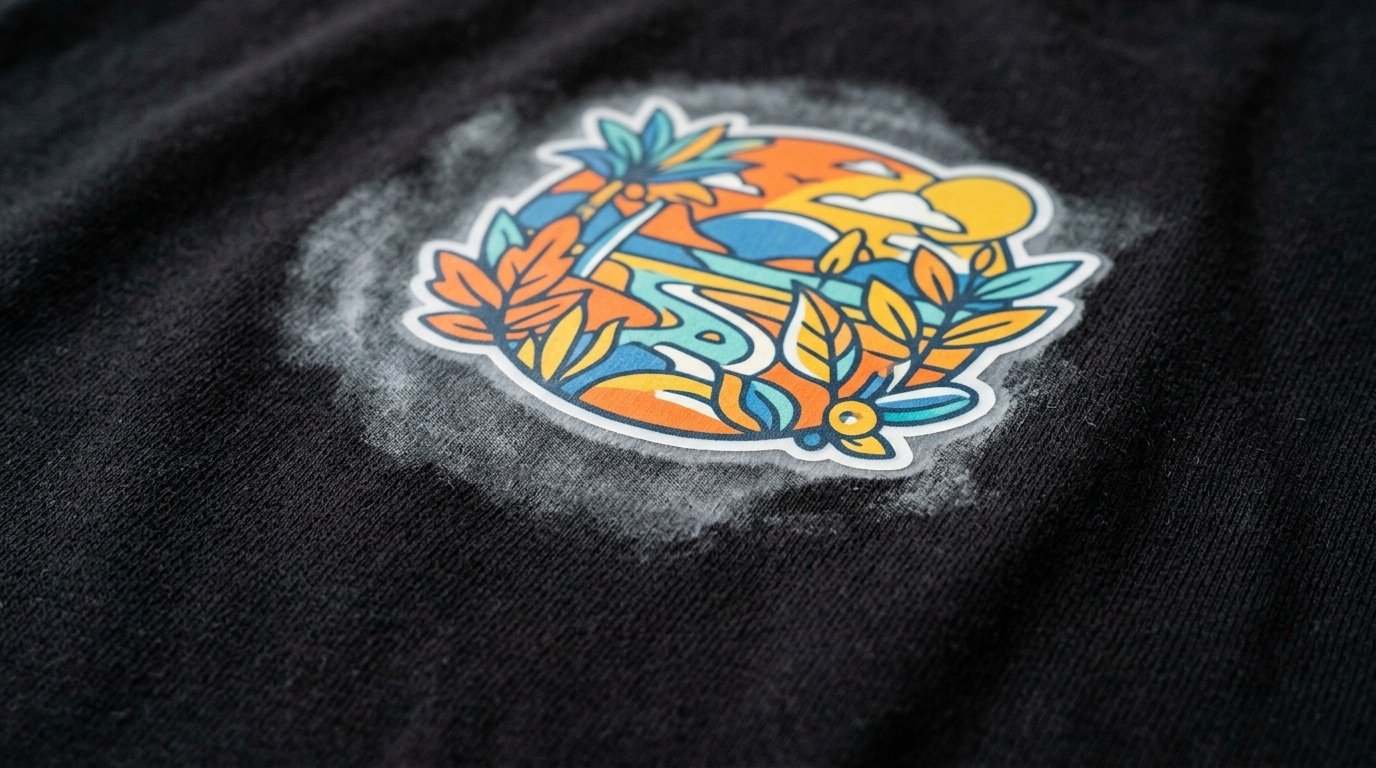
The artwork looks perfect on screen. Then the printed shirt arrives and there is a light outline around the subject, a milky film or a greyish veil. On a black garment you can see it from across the room.
White halos in DTF prints are one of the most reported defects among people who print or have printing done. The good news is that they have specific causes and, in most cases, they can be eliminated while preparing the file. Here is how to recognise them and what to do.
- The most frequent cause is semi-transparent pixels along edges and in shadows.
- In production, what matters is the white choke and how powder is handled.
- Check the file over a black background at 100% zoom: if you see the fringe, the problem is in the file.
Which halo do you have?
Before fixing anything, work out what you are looking at. "Halo" gets used for several different defects:
| What you see | Likely cause | Where it gets fixed |
|---|---|---|
| Thin light fringe along the edges | Anti-aliasing / semi-transparent pixels | File |
| Milky veil over shadows and gradients | Partial opacity printed with white underneath | File (halftone) |
| Clean, even white border | White underbase sticking out past the colour | RIP (white choke) |
| Specks or powder outside the artwork | Adhesive stuck to unprinted areas | Production |
| Patches around bright areas of a photo | Backlight and blown-out highlights | File (correction + halftone) |
Cause #1: semi-transparent pixels in the file
When you cut a subject out, add a soft shadow or export a vector logo, the software creates pixels at partial opacity along the edges to keep the outline smooth. That is anti-aliasing. On screen it looks perfect; in DTF those pixels are often read by the RIP as printable area and receive the white underbase.
The result is a thin frame, lighter than the artwork colour: the classic milky outline on dark fabric. The same thing happens, on a larger scale, with shadows, glows and gradients fading into transparency.
How to check it in 30 seconds
- Open the PNG in a graphics application.
- Put a solid black layer underneath (then a white one).
- Zoom to 100–200% on the edges and the shadows.
- If you see a light, grey or "dirty" fringe, the problem is in the file.
How to fix it
- Threshold the alpha: make every pixel either solid or transparent, nothing in between.
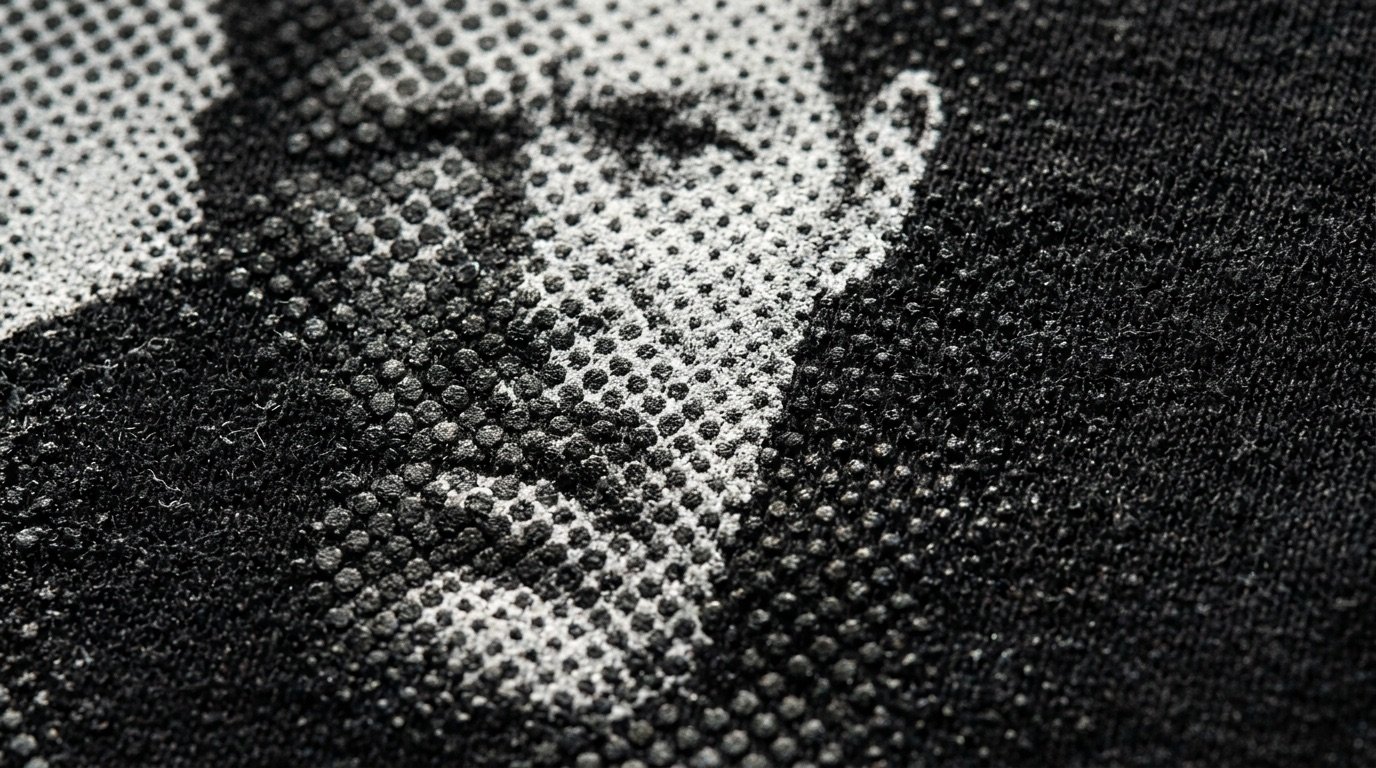
- Halftone shadows and gradients instead of leaving them as opacity: see the DTF halftone guide.
- Knock out the fabric colour along the edges: a dark outline on a black shirt serves no purpose and creates steps.
- Do not resize afterwards: resampling brings semi-transparent pixels straight back.
Cause #2: the white underbase sticks out
Even with a clean file, if the white underbase covers exactly the same area as the colour, the smallest misregistration or ink spread will show it along the edges. DTF RIPs let you choke the white back by a few pixels (white choke, or underbase choke) and adjust its density. This is a production setting: if someone else prints for you, send them a close-up photo of the problem.
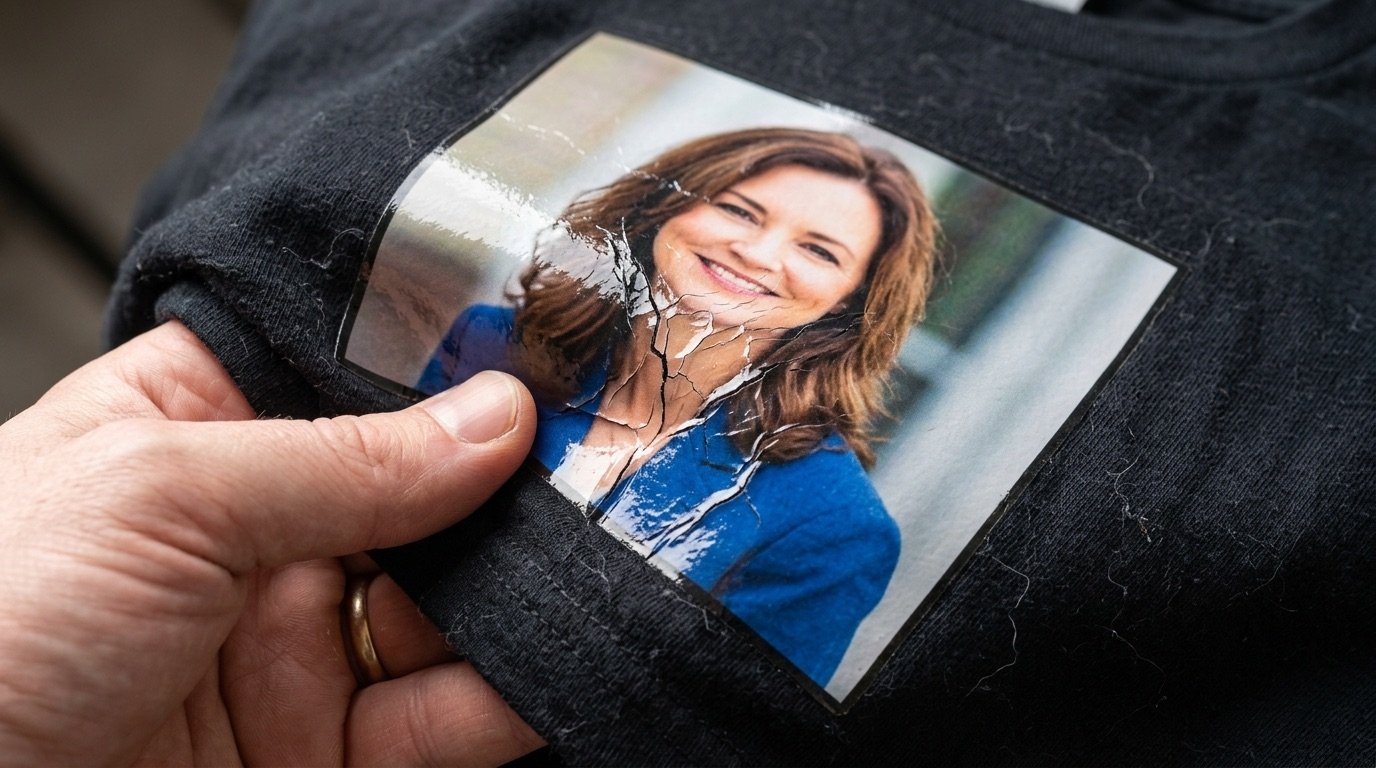
Cause #3: backlit photos and blown highlights
Photos shot into the sun, reflections and overexposed skies contain wide, almost white areas with soft transitions. On a black shirt they turn into milky patches that eat the edges of the subject. This one needs fixing upstream: recover the highlights, raise local contrast and then halftone, so the transitions become dots instead of veils.
Cause #4: adhesive powder in the wrong place
If you see specks or a matte film outside the artwork, the powder has usually stuck to unprinted areas: static electricity, humidity, unsuitable film or not enough shaking. The file is not involved here; the powdering and curing process needs reviewing, following your film and powder supplier's guidance.
Anti-halo checklist
- Clean alpha: pixels at 100% or 0% only.
- Shadows, glows and gradients halftoned.
- Fabric colour removed from edges and dark areas.
- Highlights recovered in backlit photos.
- Final check over black and white backgrounds at 100% zoom.
- In production: white choke and white density verified.
How to remove them automatically
Cleaning the alpha and halftoning shadows by hand is doable, but it takes time and attention on every single graphic. Halftonix Pro automatically removes the semi-transparent pixels created by anti-aliasing, strips the transparency gradients the RIP reads as printable, and prevents milky outlines on dark fabrics. It also has a function built for backlit photos and overexposed areas, the number one problem in DTF.
For the whole workflow, start from the guide on how to prepare a file for DTF printing.
Frequently asked questions
Why is there a white edge around my DTF print?
The most common causes are semi-transparent pixels along the edges of the artwork (anti-aliasing, shadows, glows) that the RIP prints with white underneath, and a white underbase that sticks out past the colour. Less often, adhesive powder sticks outside the printed area.
What is white choke in the RIP?
It is how far the white underbase is pulled back from the colour: the white is shrunk by a few pixels so it does not peek out past the edges of the artwork. You set it in the RIP software, and your print shop tunes it for their printer.
How do I know whether the halo comes from the file?
Open the PNG over a solid black background and zoom to 100% or more on the edges: if you see a light or greyish fringe, the semi-transparent pixels are in the file. If the file is clean and the halo still appears, the cause is more likely in production.
Can halos be removed from a backlit photo?
Yes, but you have to fix the overexposed areas first and then halftone, instead of letting the glow turn into a semi-transparent area. Halftonix Pro has a function built specifically for backlight and blown-out zones.