How to prepare a file for DTF printing
Resolution, transparency, fabric colour and final checks: the complete process to hand your RIP a file that prints clean the first time.
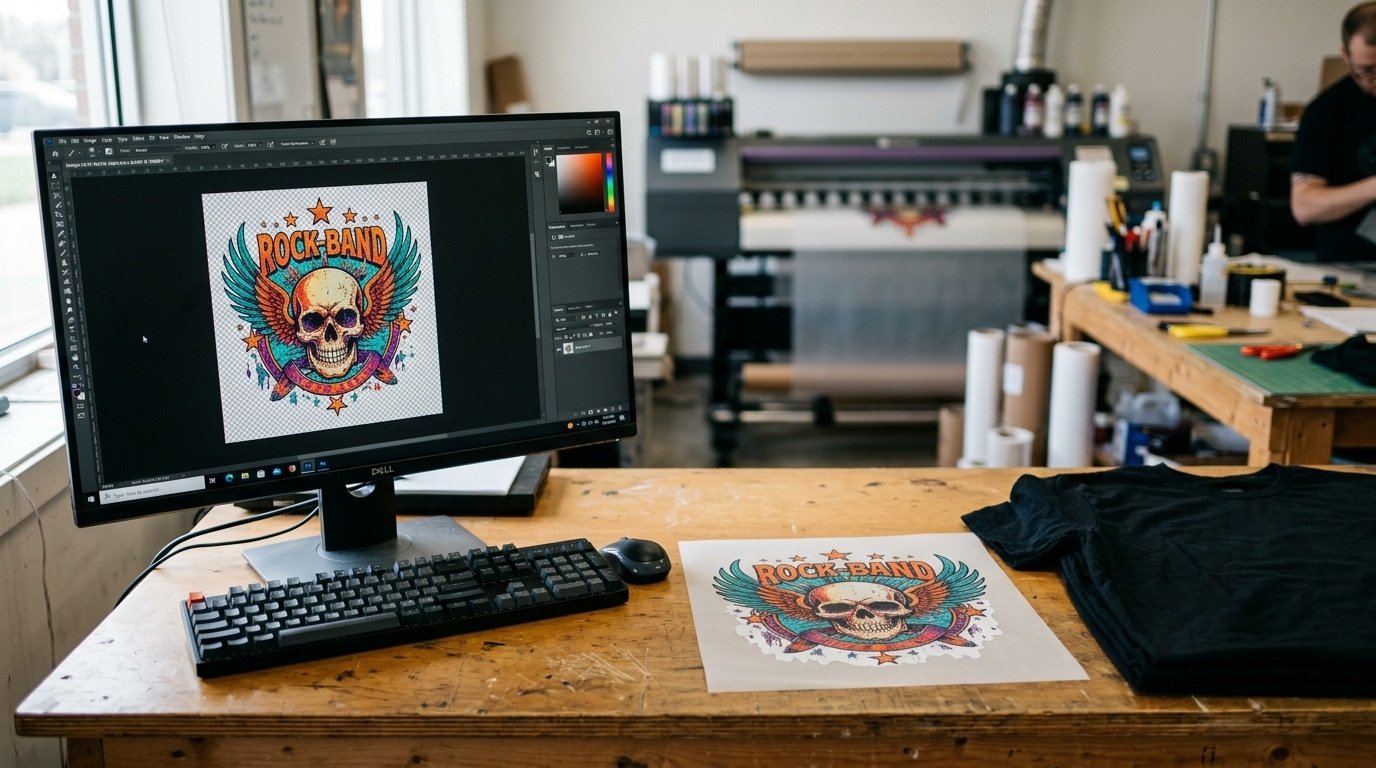
In DTF printing, the file is half the result. The printer, the film and the adhesive powder do their part, but if the artwork reaches the RIP with dirty pixels, not enough resolution or a solid black background, no print setting will save it.
This guide walks through how to prepare a file for DTF printing, step by step: from the right dimensions to handling transparency, down to the checks to run before you send it. It is the same routine used by print shops that deliver soft, clean prints with no halos.
- Work at 300 DPI at the real print size.
- Export a transparent PNG, with no background and no semi-transparent pixels.
- Knock out or halftone the fabric colour (black on black shirts, white on white shirts).
- Check minimum line weights, small type and edges at 100% zoom before sending.
Why the file matters so much in DTF
To understand what makes a file "right", remember how DTF works. The printer lays colour inks onto a PET film and, on top of them, a white layer that acts as the base. The film is then dusted with adhesive powder, which sticks only where there is ink, and cured in an oven. Finally it is transferred onto the garment with a heat press.
The practical consequence is simple: every pixel the RIP considers printable receives ink, white and glue. Even the ones that look invisible on screen. That is why a DTF file has to be prepared around what will actually be deposited on the fabric, not around how it looks on a monitor.
1. Size and resolution: 300 DPI at the real size
The first mistake is thinking in pixels without thinking in centimetres. What matters is the effective resolution at print size. The DTF standard is 300 DPI: below roughly 200 DPI the difference starts to show, especially on type and hard edges.
| Print width | Pixels needed at 300 DPI | Typical use |
|---|---|---|
| 9 cm | ≈ 1,063 px | Left chest logo |
| 25 cm | ≈ 2,953 px | Standard adult front |
| 30 cm | ≈ 3,543 px | Large front or back |
| 38 cm | ≈ 4,488 px | Oversize back |
If the source image is too small, changing the DPI value in the metadata does nothing: it has to be resampled (upscaled) with a decent algorithm before you touch halftones and transparency. Enlarging an already halftoned file distorts the dots and dirties the edges.
2. Format: transparent PNG, no background
For a single graphic the reference format is a 24-bit PNG with an alpha channel. JPG is out for the final file because it has no transparency: the background would print as a rectangle. PDF is a good choice for gang sheets or when the print shop asks for it.
Before exporting:
- delete any background layer, even a white one;
- crop the canvas to the artwork, leaving a few millimetres at most;
- flatten only at the end, keeping a layered copy for future edits.
3. The invisible enemy: semi-transparent pixels
This is where a "visually correct" file and a file that is genuinely optimised for DTF part ways. Soft shadows, gradients, glows and even plain anti-aliasing along the edges create pixels at partial opacity, say 20% or 40%.
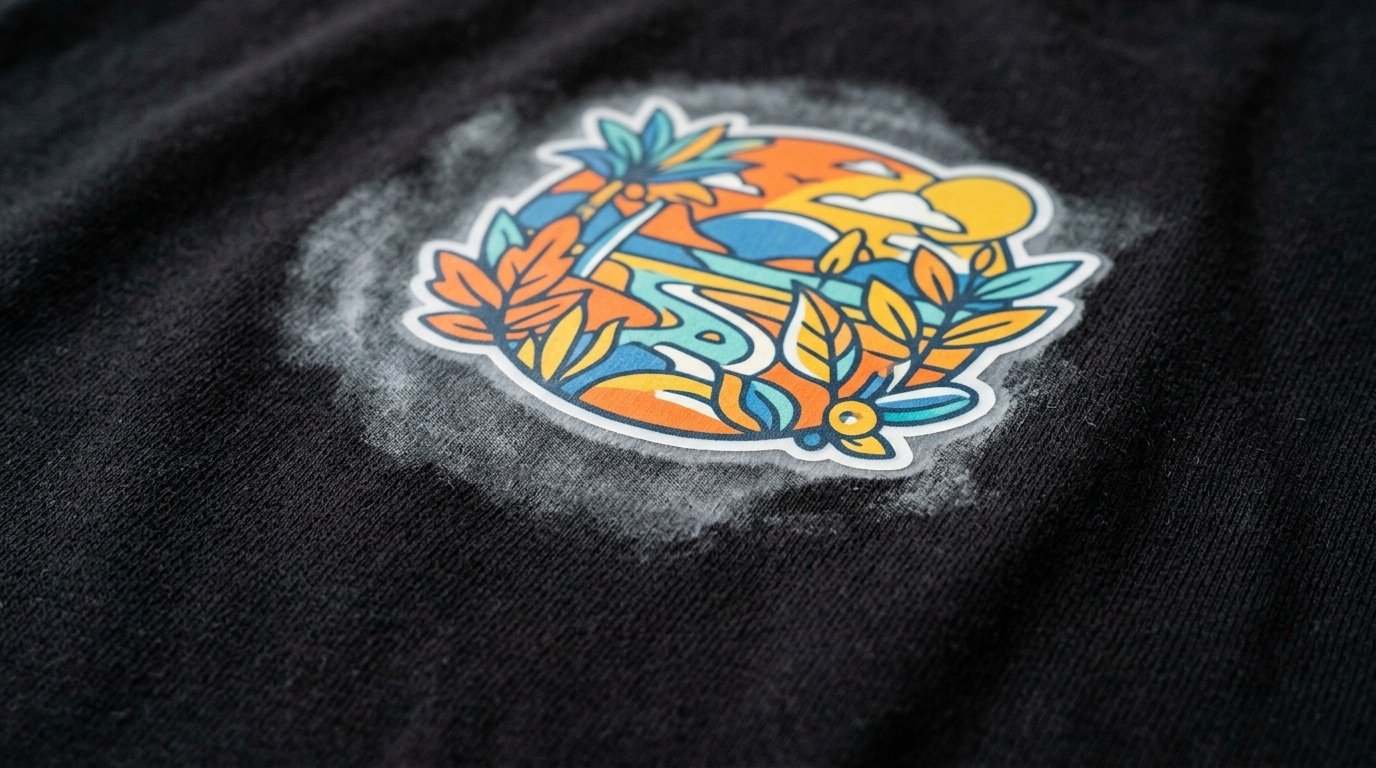
On screen those pixels are almost invisible. The RIP, however, reads them differently depending on its settings: in many cases it prints them anyway, with white underneath. The result is milky outlines, greyish film and the general "dirt" you see around the artwork. We cover it in detail in the article on white halos in DTF prints.
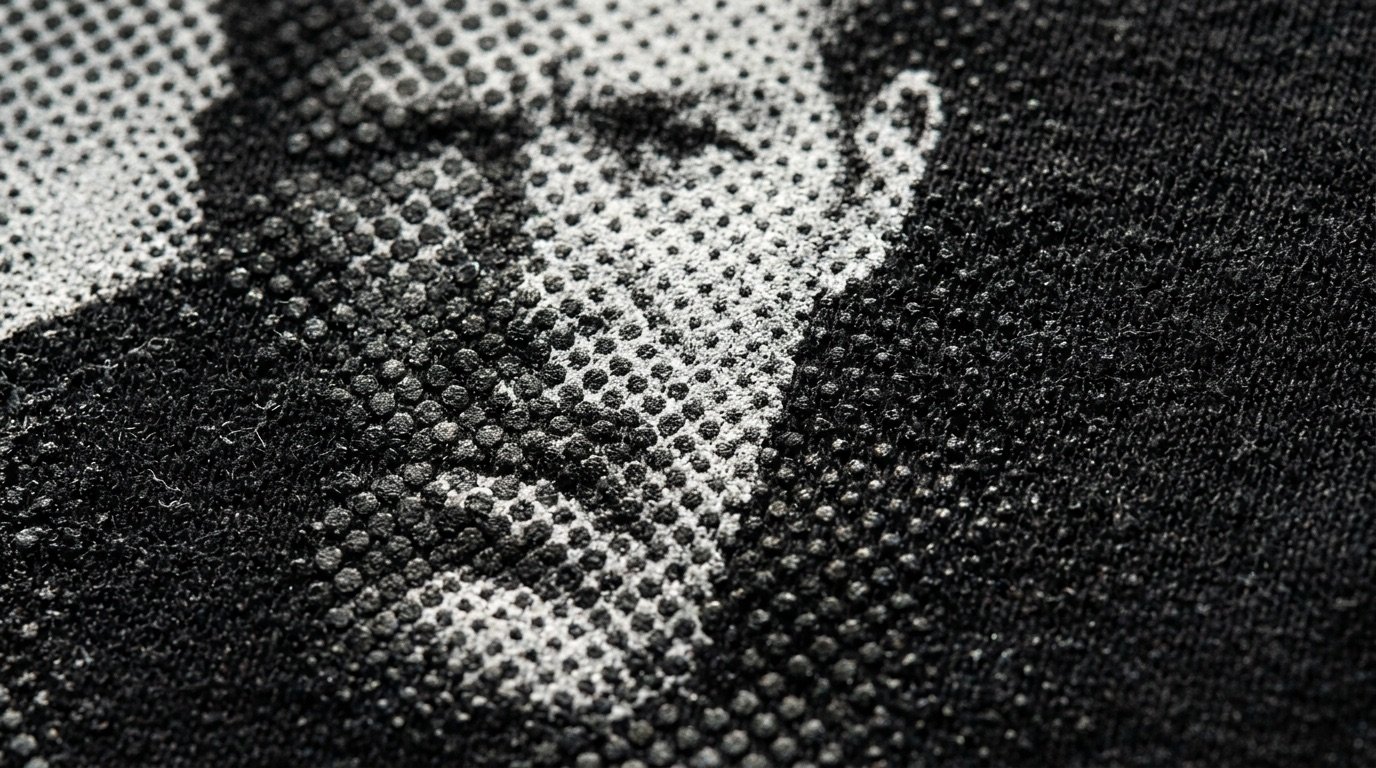
The rule is: every pixel must be either full (100%) or transparent (0%). Gradients are not built with opacity, but with halftone screening: solid dots of varying size that let the fabric show through between them.
4. Match the artwork to the fabric colour
Artwork designed for white paper is not ready for a black t-shirt. The most common case is black on a black shirt: leave it in the file and the printer lays white plus black where the garment is already black. All you gain is thickness, a stiffer print and a rectangle or silhouette you can feel with your hand.
The professional fix is called a knockout: the garment colour is removed from the artwork, so the fabric itself produces that colour. In transition areas — shadows, gradients fading into black — the removal must not be a hard cut but a halftoned one, otherwise you get the sticker look. The same principle applies in reverse for white on white, and for coloured fabrics.
5. Thin lines, type and minimum detail
DTF reproduces very fine detail, but there are physical limits: elements that are too small may not hold enough adhesive powder and can come off in the wash. As a conservative reference:
- lines: at least 0.5–1 mm thick;
- type: at least 6–8 pt for sans serif, more for serif or very thin faces;
- halftone dots: avoid isolated tiny dots in the highlights (see the halftone guide).
Exact values depend on your printer, film and powder: print a test sheet once with a range of weights and keep it as a reference.
6. Colour: RGB, profiles and blacks
Most DTF shops work with RGB (sRGB) files and let the RIP handle conversion for the printer. Converting to CMYK yourself, without knowing the profile in use, can flatten the colours. Always ask your printer for their specs.
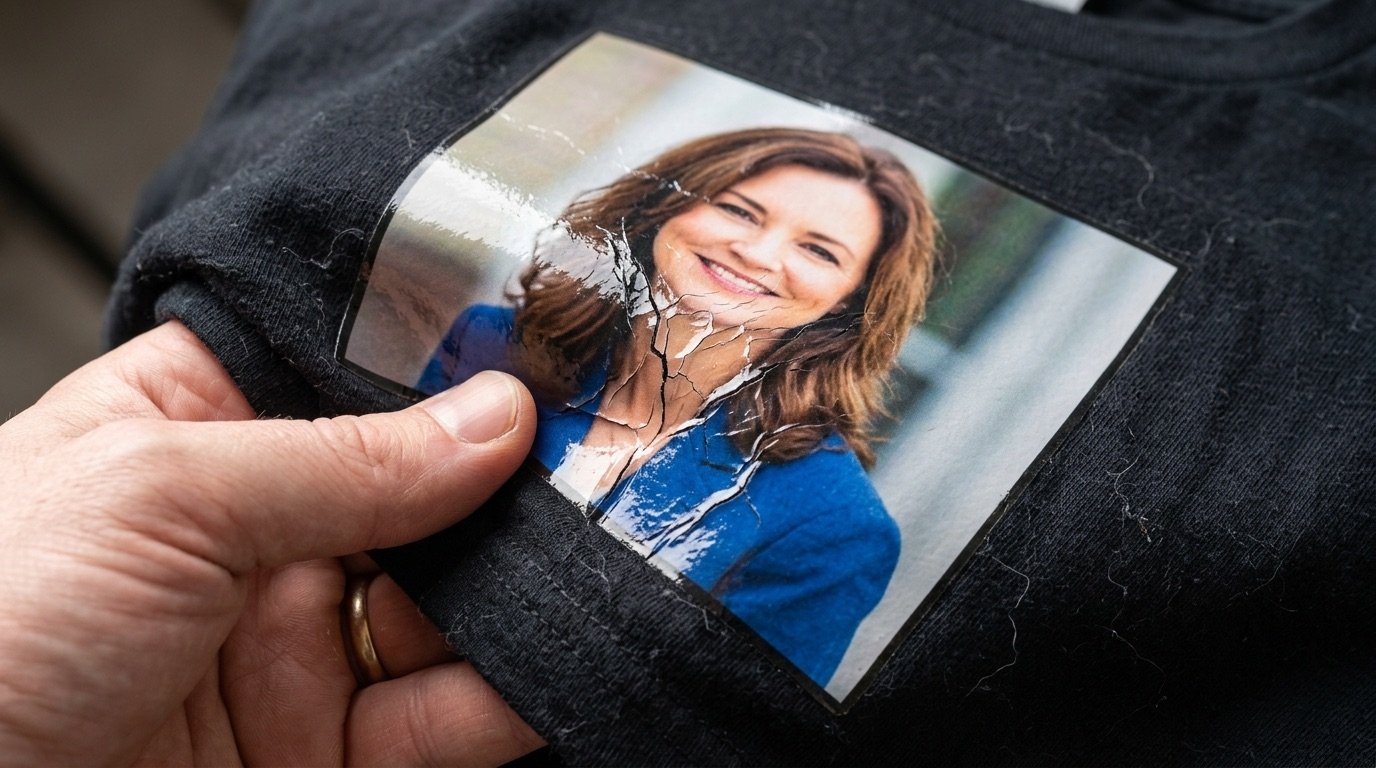
Watch out for rich blacks and very large dark areas: in DTF those are the zones that pile up the most material. If the garment is black, consider removing them; if it is light, consider halftoning the shadows to lighten the print. It is one of the main reasons a DTF print ends up stiff and plasticky.
Final checklist before sending
- Document at real size, at a true 300 DPI.
- Transparent PNG, no background layer, canvas cropped.
- No semi-transparent pixels: full or empty only, with gradients halftoned.
- Fabric colour removed or halftoned where needed.
- Lines and type above the minimum weight, checked at 100% zoom.
- Checked against a black background and a white one, to spot leftovers and halos.
- Clear file name, with size and garment colour (e.g.
logo-front_28cm_black-tee.png).
How to speed up file preparation
All of this can be done in Photoshop, but it takes actions, masks and manual checks that can eat up an hour for a single graphic. That is why we built Halftonix Pro: load the image, pick the fabric colour to knock out, shape the halftone with live curves and export a 300 DPI PNG with no semi-transparent pixels, ready for the RIP. The mockup preview shows the result on the garment before you print.
Whether you use Photoshop or a dedicated tool, the important part is having a routine that never changes. A well-prepared file does not just print better: it saves ink, film and time.
Frequently asked questions
What resolution should a DTF file have?
The standard is 300 DPI at the real print size. A graphic printed 30 cm wide therefore needs around 3,543 pixels across. Below roughly 200 effective DPI, edges and fine detail start to fall apart.
PNG or PDF for DTF?
For a single graphic, a PNG with an alpha channel is the usual choice. PDF is mainly useful for gang sheets or when your print shop asks for it. In both cases the transparency must be clean, with no pixels at partial opacity.
Should a DTF file be RGB or CMYK?
In most cases RGB (sRGB): the print shop's RIP converts the colours for the printer. Always ask your printer for their specs, because some workflows prefer a different profile.
Why remove black when printing on a black shirt?
Because every non-transparent pixel gets a white underbase and then ink on top. Printing black on a black shirt only adds material, makes the print stiffer and creates visible edges. Removing it, or halftoning it, lets the fabric do the work.
Can I use a JPG for DTF printing?
Not for the final file, unless the design really is a rectangle. JPG has no transparency, so the background would be printed too. Start from a JPG if you like, but export the final file as a transparent PNG.