Why the RIP prints pixels that looked transparent
The pixels looked empty in the file, yet they show up in the print anyway. How the alpha channel actually works and why the checkerboard pattern fools you.
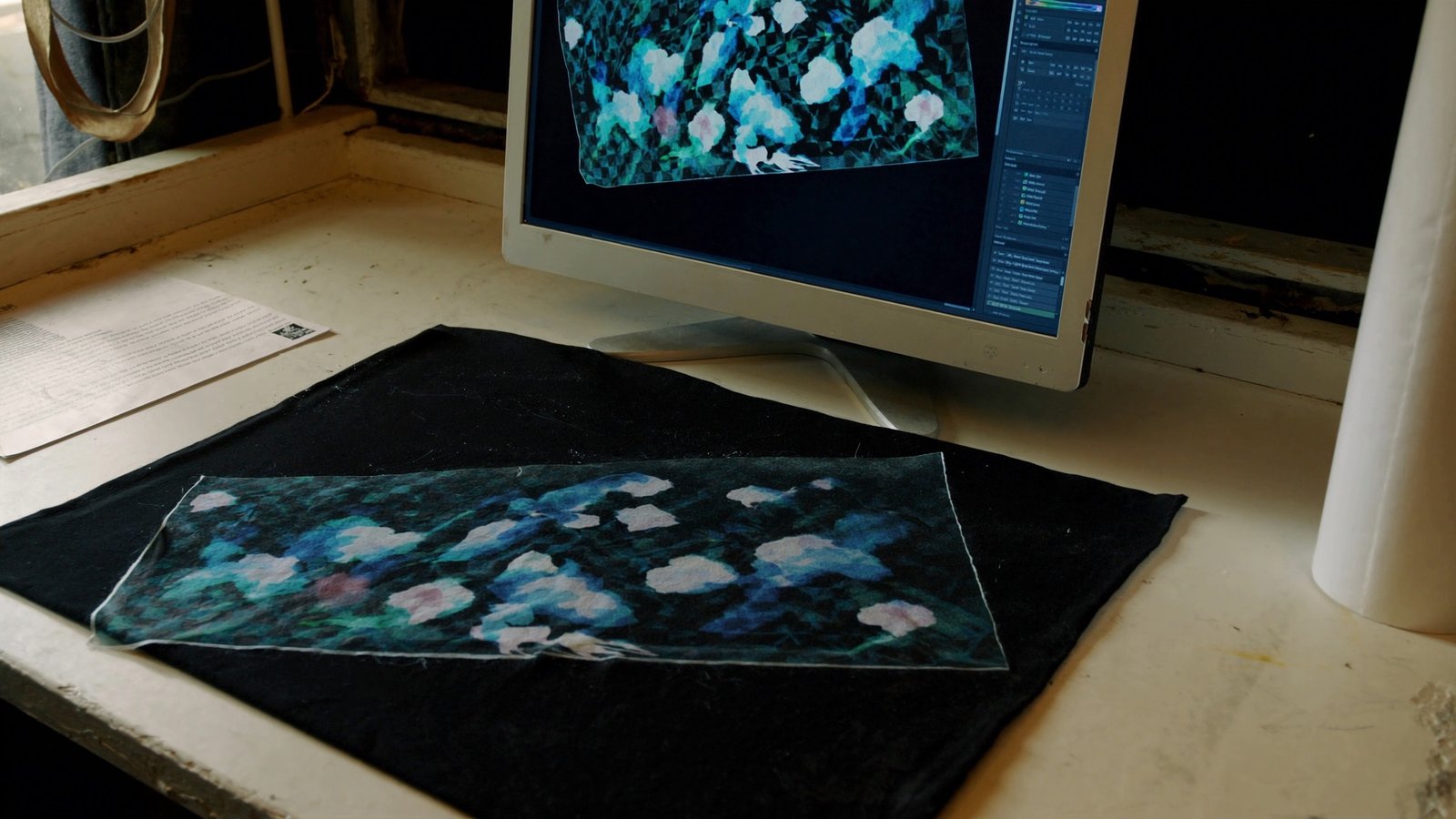
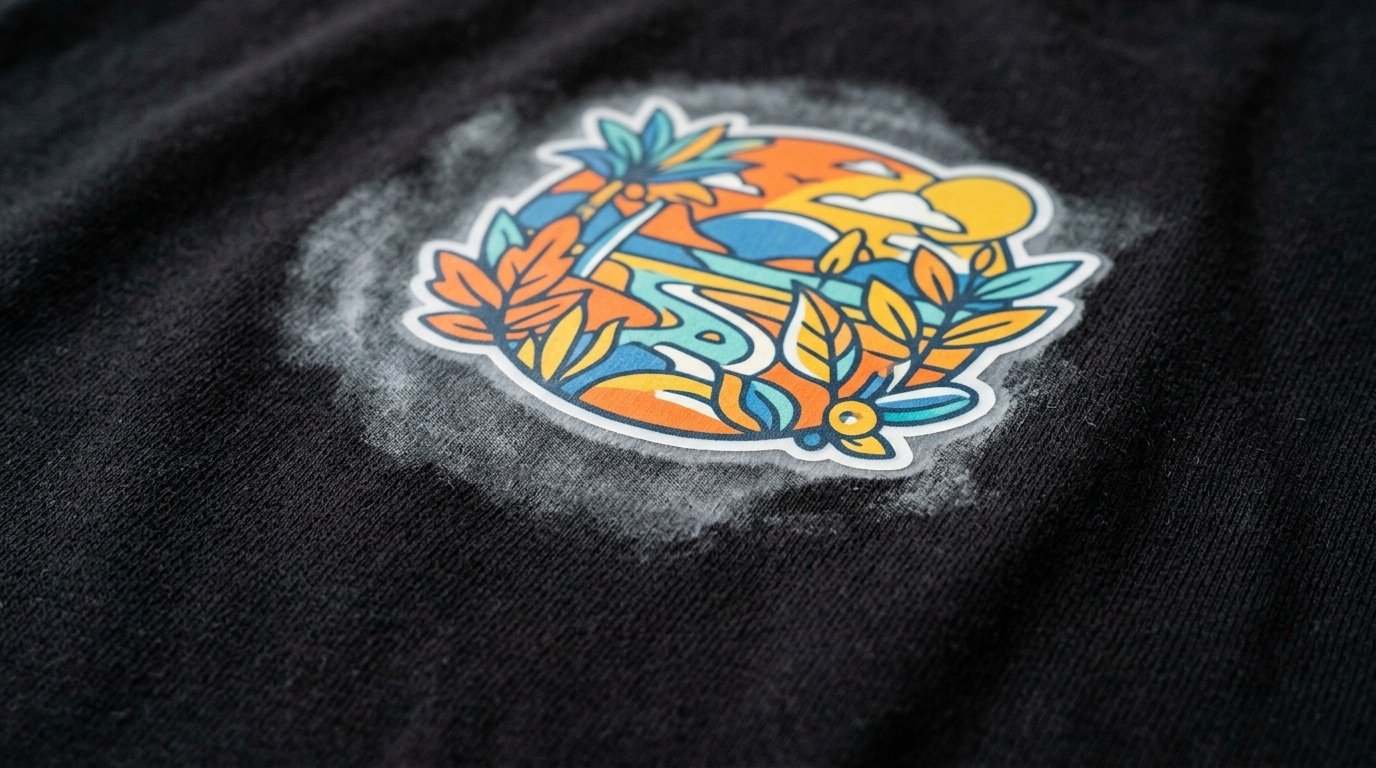
You open the PNG, zoom into the edges, and everything looks clean: where the subject ends there's the grey checkerboard your editor uses for "nothing here". Then the file goes to print and a haze, a faint film of colour that shouldn't exist, shows up along those same margins. The file didn't change. What changed is who's reading it.
This isn't a RIP bug or a corrupted file. It's a mismatch between what your graphics editor displays as transparent and what the PNG's alpha channel actually contains. Understanding that gap saves hours spent looking for the cause in the wrong place.
- "Transparent" on screen often means semi-transparent in the file, not 100% transparent.
- The alpha channel holds in-between values (1-254) that the editor shows the same way, as checkerboard.
- Every RIP has its own cutoff point, often different from what you'd expect.
- Switching to JPG doesn't remove the problem, it just hides it behind a flat background.
The checkerboard is an approximation, not a value
Graphics editors represent transparency with a light-and-dark grey checkered pattern. It's a convenient visual shortcut, but it flattens information that's actually continuous. A pixel at 2% opacity, one at 30% and one at 90% all get shown with roughly the same "veiled" checkerboard, and on screen, especially at low zoom, the difference between them is almost impossible to spot.
A PNG's alpha channel, on the other hand, stores a precise value for every single pixel: 0 is fully transparent, 255 is fully opaque, and everything in between is a zone that the printing software has to decide how to handle. That's exactly where the problem starts, in the grey area the screen shows as "empty" when the file doesn't treat it that way at all.
Where these in-between pixels come from
- Anti-aliasing: every curved or diagonal edge generates transition pixels to look smooth on screen.
- Soft shadows and glows: by definition they fade toward zero opacity, passing through every value along the way.
- Background removal tools, manual or automatic: they almost always leave a fringe of semi-transparent pixels on hair, fur, or frayed fabric edges.
- Resizing an already clean image: resampling averages neighbouring pixels and can reintroduce in-between values that weren't there before.
How the RIP actually reads the alpha channel
A DTF RIP has to decide, pixel by pixel, whether to print colour with white underbase beneath it, or leave the area uncovered. To do that, it applies a threshold to the alpha value: above a certain percentage the pixel counts as "print it", below that it gets ignored. The critical part is that this threshold:
- varies from one RIP to another, and sometimes between versions of the same software;
- is often invisible and not adjustable by the operator;
- in many cases isn't a hard cutoff but a proportional print: a pixel at 40% alpha gets a proportional amount of white, not zero.
This explains a symptom that confuses a lot of people: the exact same file prints clean on one setup and shows a light haze on another. The file isn't "wrong", the RIP's threshold is simply reading the same in-between values differently.
Why switching to JPG makes things worse
A common reaction is to drop PNG for JPG, thinking it "avoids the transparency problem". In reality JPG has no alpha channel at all: every pixel is always 100% opaque. When you export to JPG, any soft or semi-transparent edge gets flattened onto a background, usually white, and that background becomes part of the image. The result isn't the absence of haze, it's a visible white rectangle around the subject, often more obvious than the original problem.
For DTF, the only reliable format is still a PNG with a real alpha channel, saved without any intermediate step that could compress or alter it.
How to actually inspect alpha values
Looking at the screen isn't enough: you need to read the numbers. A few practical ways to do that:
- Use your editor's eyedropper or pixel inspector and check the opacity value, not just the colour, along the edges of the subject.
- Temporarily apply a threshold on the alpha channel (every pixel below a given percentage becomes 0, above becomes 255) and see how much the outline shifts: a big change means the file had large in-between zones.
- View the alpha channel alone as a greyscale image: the grey areas, neither black nor white, are exactly the ambiguous pixels the RIP will have to interpret.
This kind of check is more reliable than the simple visual comparison over a black background described in the guide on white halos in DTF prints, because it also catches pixels too faint or too low-opacity to notice by eye but still present enough to be printed.
Checklist before sending the file to print
- Alpha checked pixel by pixel, not just "by eye" on the checkerboard.
- Threshold applied: every pixel is either fully transparent or fully opaque.
- Shadows, glows and gradients turned into halftone instead of left as graduated opacity.
- File saved as a PNG with real alpha, never routed through an intermediate JPG.
- No resizing after cleaning up the alpha.
Letting the software decide for you
Manually checking every in-between pixel on every piece of artwork isn't sustainable, even at modest volumes. Halftonix Pro analyses the image's alpha channel and automatically applies a hard threshold, removing the semi-transparent pixels created by anti-aliasing, shadows and background removal tools before the file ever reaches the RIP. The result is binary alpha, with no grey zones left to interpret.
If you want to start from the fundamentals, the guide on how to prepare a file for DTF printing also covers resolution and general document settings; for gradients specifically, the full DTF halftone guide explains how to turn them into dots instead of leaving them as opacity.
Frequently asked questions
If the pixel looks transparent in my editor, why does the RIP print it?
Because "transparent" on the editor's checkerboard often means semi-transparent, not 100% transparent. A pixel at 5% or 40% alpha still has a colour underneath it, and many RIPs treat it as an area to cover with white underbase.
What is the alpha channel and why is it misleading?
It's the value that tells a RIP how opaque a pixel is, from 0 (invisible) to 255 (fully opaque). Editors display every value in between with roughly the same faded checkerboard, so a pixel at 3% opacity looks identical to one at 40%, even though the RIP treats them very differently.
Is the cutoff for "truly transparent" always the same?
No. Every RIP has its own alpha threshold, often undocumented and not adjustable by the end user. That's why the same file can print clean on one setup and show a visible haze on another.
Does switching from PNG to JPG fix the problem?
No, it makes it worse: JPG has no alpha channel at all, so any soft edge gets flattened onto a background (usually white) and becomes part of the image. DTF always needs a PNG with real alpha, never a JPG with a background removed only visually.
Do automatic background removal tools solve this?
They reduce it but rarely eliminate it: they almost always leave a fringe of mid-opacity pixels along edges, especially on hair, fur or blurred borders. Always check it, and clean it up if needed, before sending the file to print.