Knock black out of your artwork for a black t-shirt
Black printed on a black shirt turns into a heavy grey with white underbase behind it. Here is how to knock it out, keep your shadows and let the fabric do the work.
Artwork with lots of black looks like a natural fit for a black shirt: same colour, no contrast to worry about. In DTF the opposite happens. Printed black turns into a greyish, stiff patch with an edge you can spot from across the room. The fix sounds backwards but it's simple: knock the black out of the artwork and let the shirt provide it.
This guide explains why it happens, how to remove black without losing shadows and depth, and which mistakes to avoid. Treat any values here as a starting point: every printer, RIP and fabric behaves differently, so a test print always has the final word.
- In DTF, printed black sits on a white underbase: on a black shirt it turns grey and stiff.
- Knocking out black means turning it into transparency, so the real fabric shows through.
- Shadows should become gradual transparency and then a halftone, not a hard cut.
- Always check the file on a black background and confirm with a test print.
Why printed black fails on a black garment
In DTF the film receives the colour inks first and then a white layer that acts as the base. Almost everything that is colour in your file, black included, gets printed with that white behind it. On a black shirt you end up with a black built from ink and sitting on an opaque layer: it will never have the same tone, opacity and texture as dyed cotton.
The side effects are easy to spot:
- Patch effect: the design reads as a rectangle or silhouette stuck onto the shirt rather than part of the fabric.
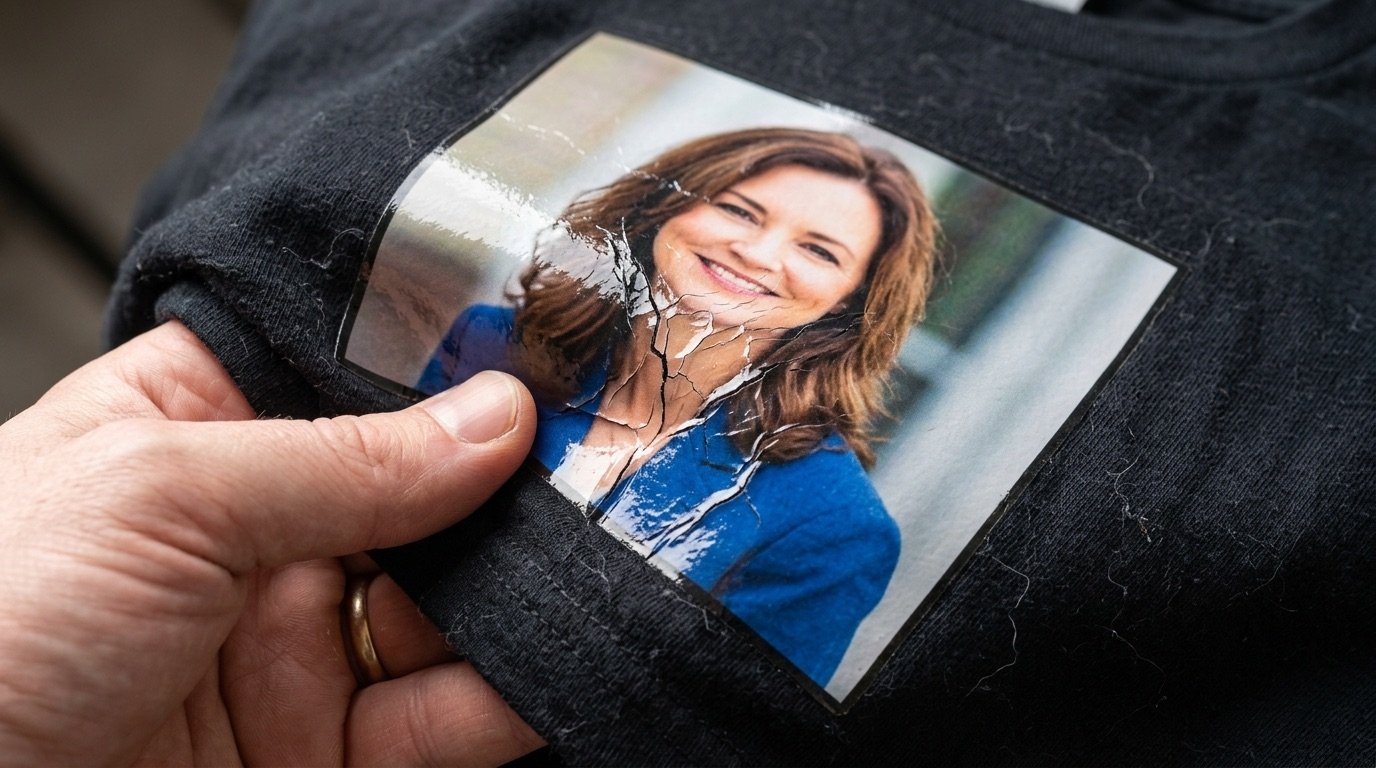
- More material than you need: large black areas mean more ink, more white and more adhesive. The print gets heavy and less breathable, something we covered in detail in why DTF prints feel stiff and plastic.
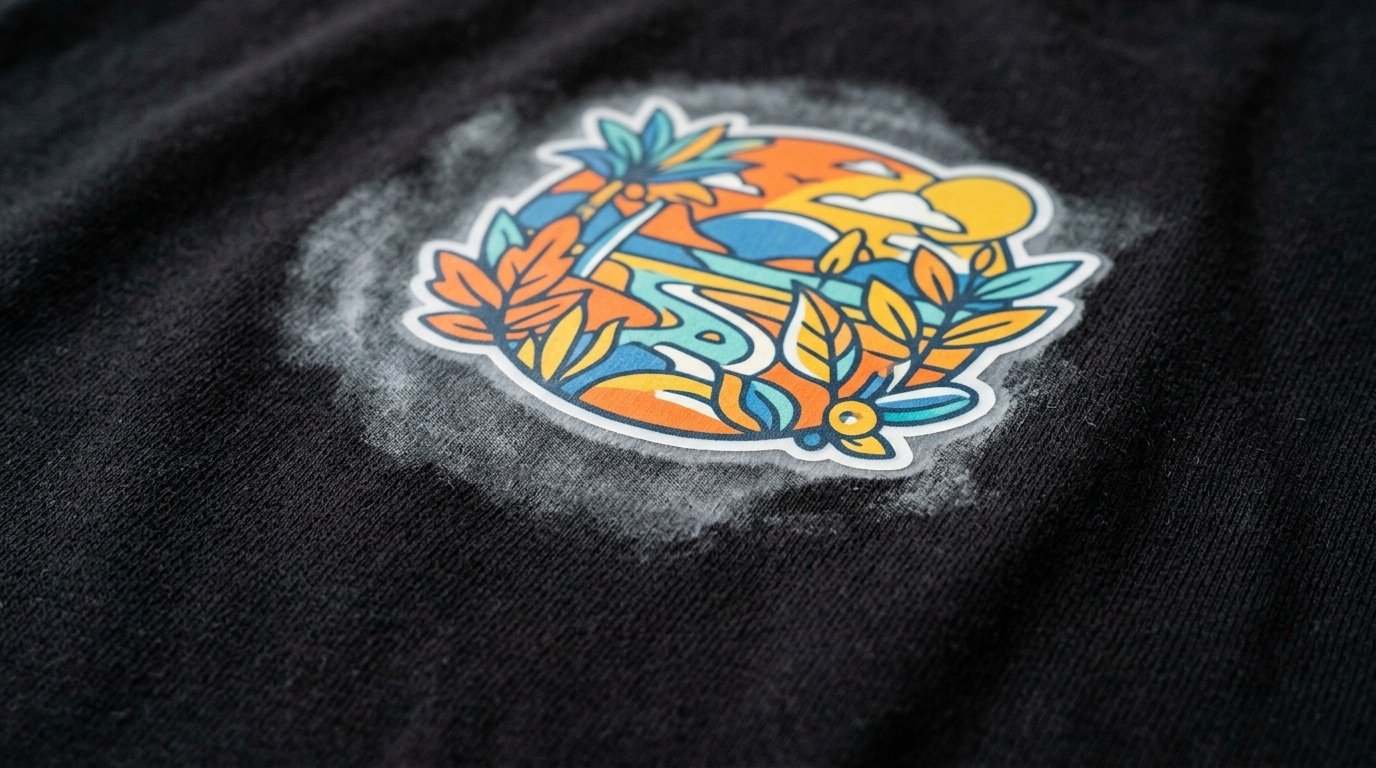
- Visible edges: where printed black ends, the step into the fabric's black is abrupt and often comes with a thin pale line.
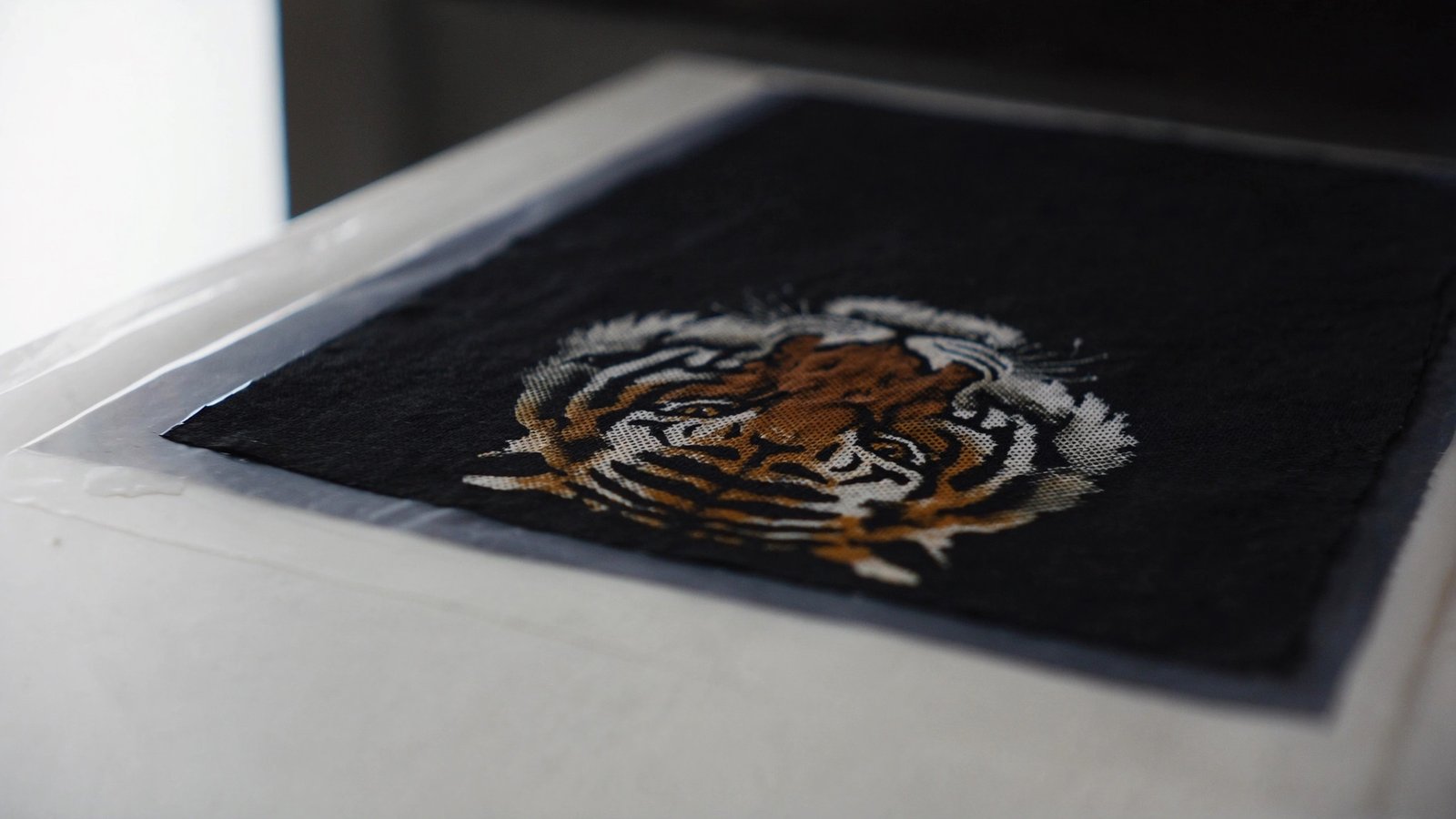
Once the black is knocked out, those areas stay as empty film. Nothing transfers there during pressing, and the fabric shows in their place. The result is lighter, softer and much better integrated.
What "knocking out black" really means
The most common mistake is to treat it as deleting: select the black with the magic wand, hit delete, done. That only works on flat graphics with solid black and crisp edges. On illustrations, photos or anything with shading, it creates a new problem: the dark greys that weren't selected stay printed and draw a hard outline where there used to be a soft gradient.
Done properly, knocking out black means converting brightness into opacity: the darker a pixel, the more transparent it becomes. Solid black disappears entirely, dark grey turns into a light colour that lets the fabric peek through, highlights stay solid. The black shirt fills in the shadows instead of ink.
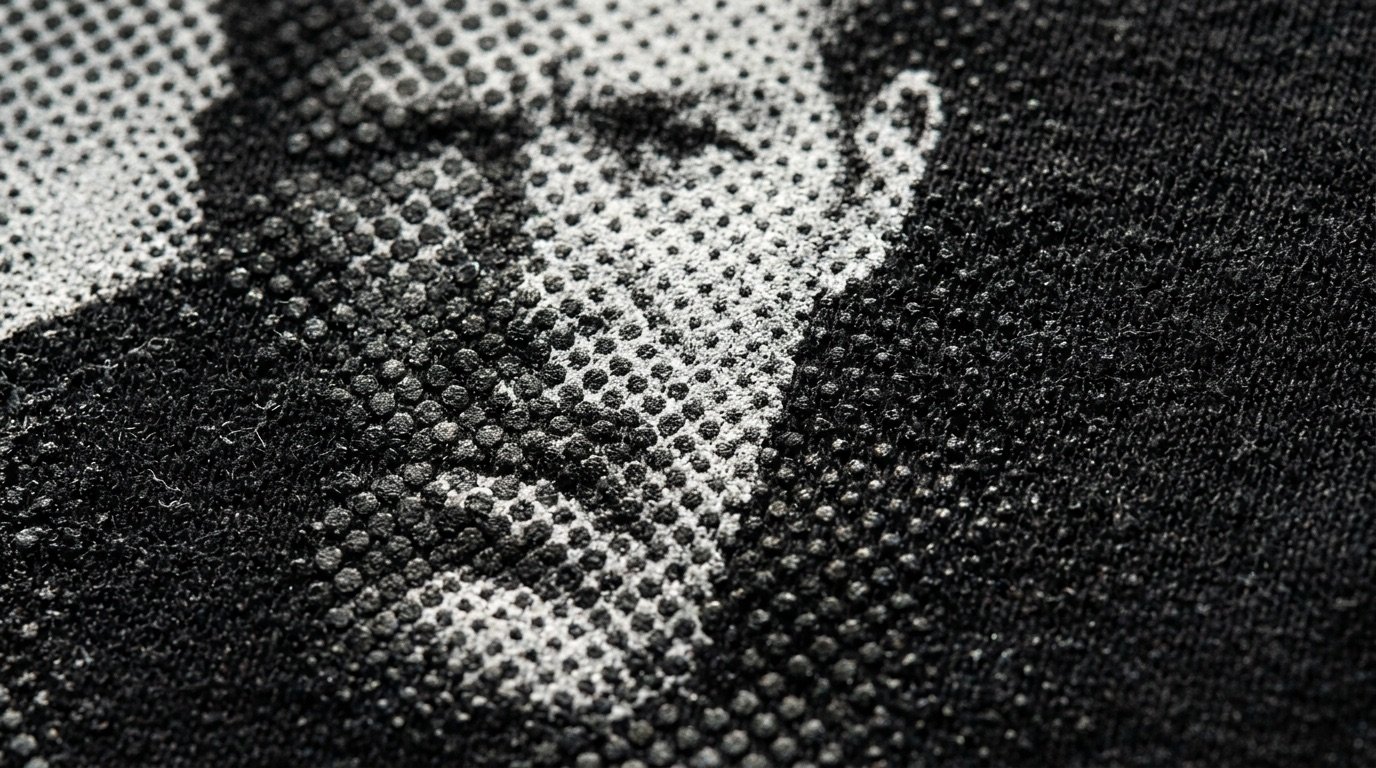
There's one more step. Gradual transparency is not something you should send to the RIP as is. Many RIPs handle semi-transparent pixels unpredictably, often printing them with a veil of white. So that gradual opacity needs to become a halftone: solid dots of varying size, as explained in our complete DTF halftone guide.
Step-by-step method
1. Analyse the artwork
Before you touch anything, ask what role the black plays. Sometimes it's background (a box, a night sky), sometimes it's shadow that gives volume, and sometimes it's line work: outlines, text, details. Background and shadows can usually go without losing anything. Black line work needs to be judged piece by piece.
2. Convert black into transparency
In an editor such as Photoshop or GIMP you can use the luminosity channel as a layer mask, or a tool like "Color to Alpha" set to black. You get an image where dark areas fade progressively into transparency. Tune the threshold while viewing the file on a solid black layer: it should look like the finished print on the shirt, with no halos and no dull patches.
3. Protect the details that must stay
If a black word or outline needs to be read, knocking out black will make it vanish. In those cases lighten it slightly, recolour it, or keep it on a separate layer that skips the conversion. The eyes in a portrait, for instance, often need a little contrast so they don't look empty.
4. Turn the gradients into a halftone
After the conversion your artwork is full of semi-transparent pixels, exactly what a RIP handles worst. Turn them into a halftone: dots that are either fully on or fully off, smaller where shadows are deep and larger towards the highlights. Dot frequency and shape depend on resolution and on your setup. As a rough guide, dots that are too small may not transfer reliably, so check the result with a test print.
5. Check edges and the alpha channel
Zoom in on a black background and look for pale fringes or stray pixels along the edges. They're the most frequent cause of the white halo in DTF prints. The final alpha channel should be crisp: every pixel either solid or empty.
When you shouldn't knock out black
It isn't an absolute rule. There are cases where printed black makes sense even on a black garment:
- Deliberate effects: a glossy black panel contrasting with matte cotton can be a design choice.
- Black inside the colour: an outline separating two coloured areas within the design helps it read; removing it can muddy neighbouring colours.
- Shirts that aren't black: on charcoal or midnight blue, knocking out black reveals a different colour. It can look great or odd, so judge it case by case.
The best answer is often a compromise: knock black out of large areas and shadows, and keep it only where it's truly needed for legibility.
Common mistakes to avoid
- Removing only pure black: near-blacks, very common in photos and JPGs, stay behind and print as grey blotches.
- Leaving gradual transparency: without a halftone, the RIP may lay a veil of white across the whole area.
- Judging the file on white: it looks clean on screen, but halos and fringes only show up on black.
- Forgetting the text: a black tagline disappears completely. Check that every word stays readable.
- Using one threshold for everything: a high-contrast illustration and a dark photo need different settings.
Pre-print checklist
- Role of the black identified: background, shadow or detail.
- Black and dark tones converted into gradual transparency.
- Text and key details still readable.
- Gradients converted into a halftone, crisp alpha.
- File checked on a solid black background, no halos.
- Test print on an offcut of the actual garment.
Knock out black without the manual work
Repeating masks, thresholds and halftoning by hand for every design takes time and experience. Halftonix Pro lets you knock the black out of your artwork, turn shadows into a halftone and export a transparent PNG with a crisp alpha, ready for the RIP. Running a test print on your own setup before a big production run is still good practice.
Frequently asked questions
Why can't I just print black on a black shirt?
Because in DTF nearly everything that is colour gets a layer of white ink underneath. Black printed on top of that white never matches the dyed black of the garment: it looks greyer or shinier and creates a stiff, visible patch. Knock it out and the real fabric shows instead.
Does knocking out black just mean deleting it?
No. If you only delete the solid black pixels, shadows and dark greys stay as printed colour and leave hard edges. The proper approach turns black and dark tones into gradual transparency, then into a halftone, so the transition into the fabric stays smooth.
What if the shirt is navy or burgundy rather than black?
The principle is the same, but the colour doing the work is now the fabric's. Knocking out black on navy can still look great, though your shadows will read bluish. Preview it on screen, then confirm with a test print.
Should I knock black out of text and outlines too?
It depends. Thin black outlines around a subject on a black shirt can often disappear without harm, because the fabric acts as the outline. Solid black text on a black shirt, however, becomes invisible: if it needs to be read, rethink it in another colour.
What black threshold should I use?
There is no universal value: it depends on the artwork, the fabric and your setup. Start with the very dark tones, adjust the threshold while viewing the file on a black background, and confirm with a test print.